Tutorial
Demo video coming very soon.
We’re putting together a short walkthrough of the map, activities, Go+, and more — so you can see ActiviGo in action.
Learn how to use the app to explore the sports equipments and activities around you — and turn everyday moments into shared sports experiences.
Explore the map
The map is your starting point. Browse sports equipments and venues near you, filter by activity type, and tap any icon to see details. Use it to discover courts, fields, and facilities in your area before joining or creating activities. An equipment is considered active if at least one activity is linked to it.
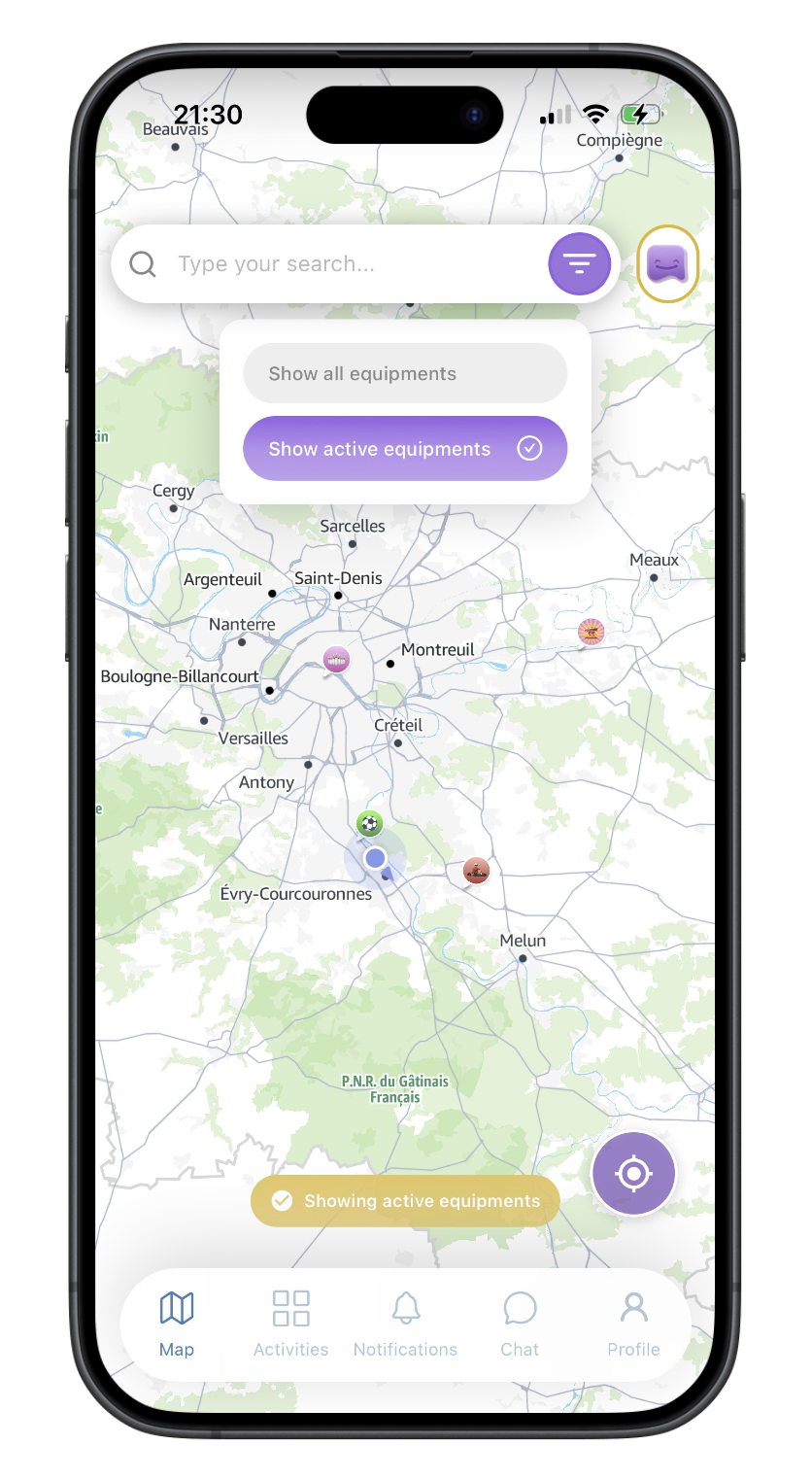
1. active equipments
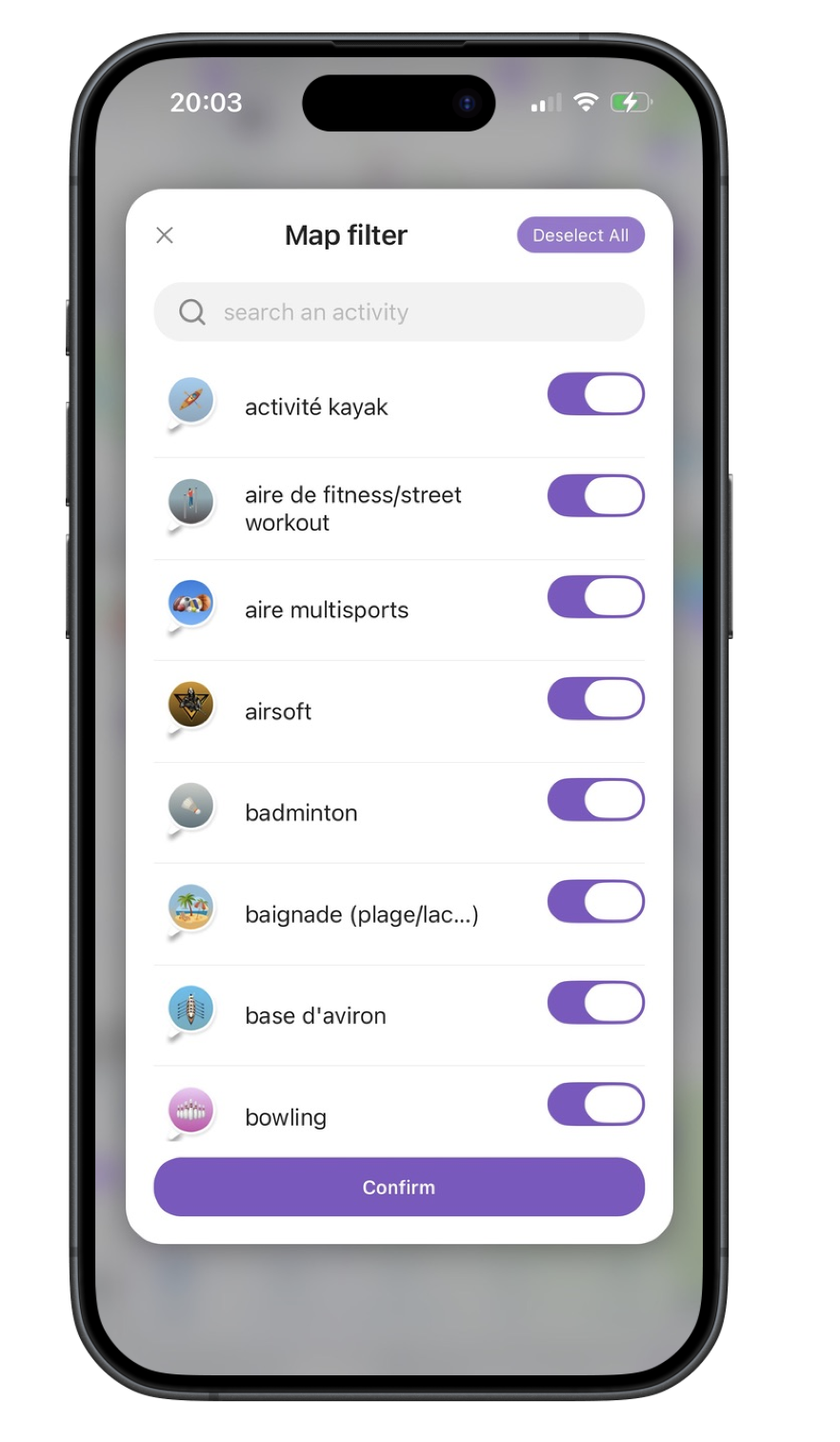
2. map filter
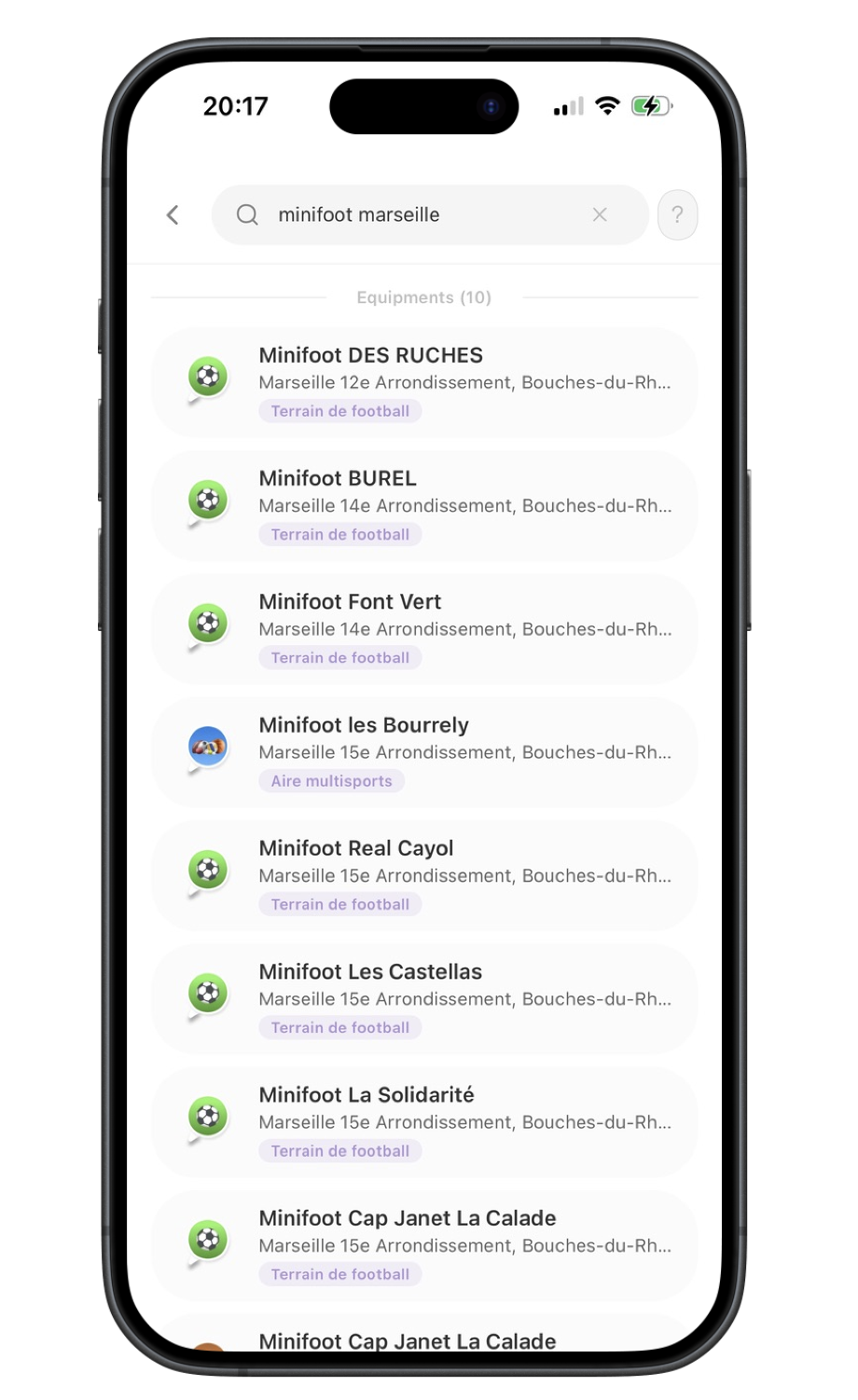
3. search
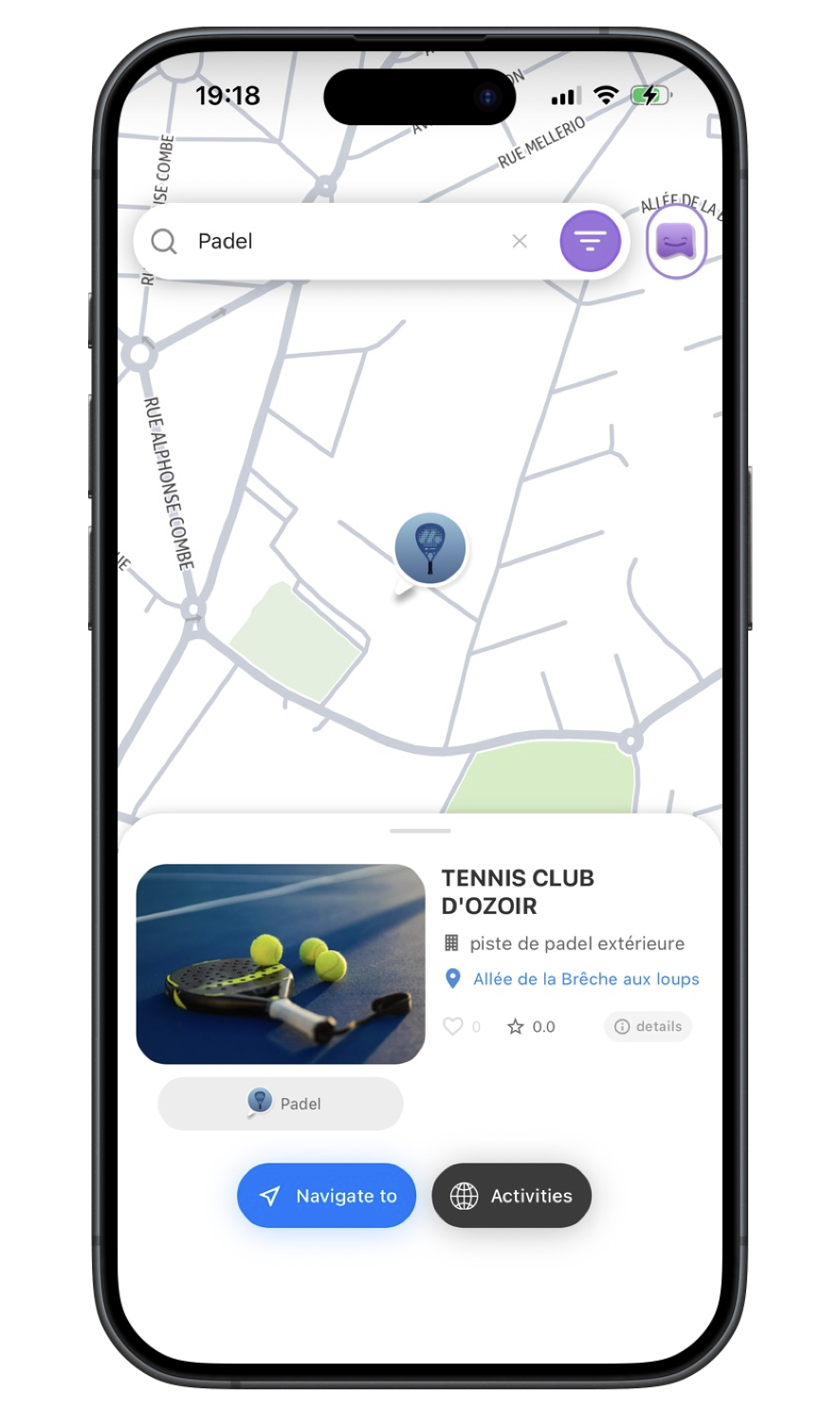
4. equipment
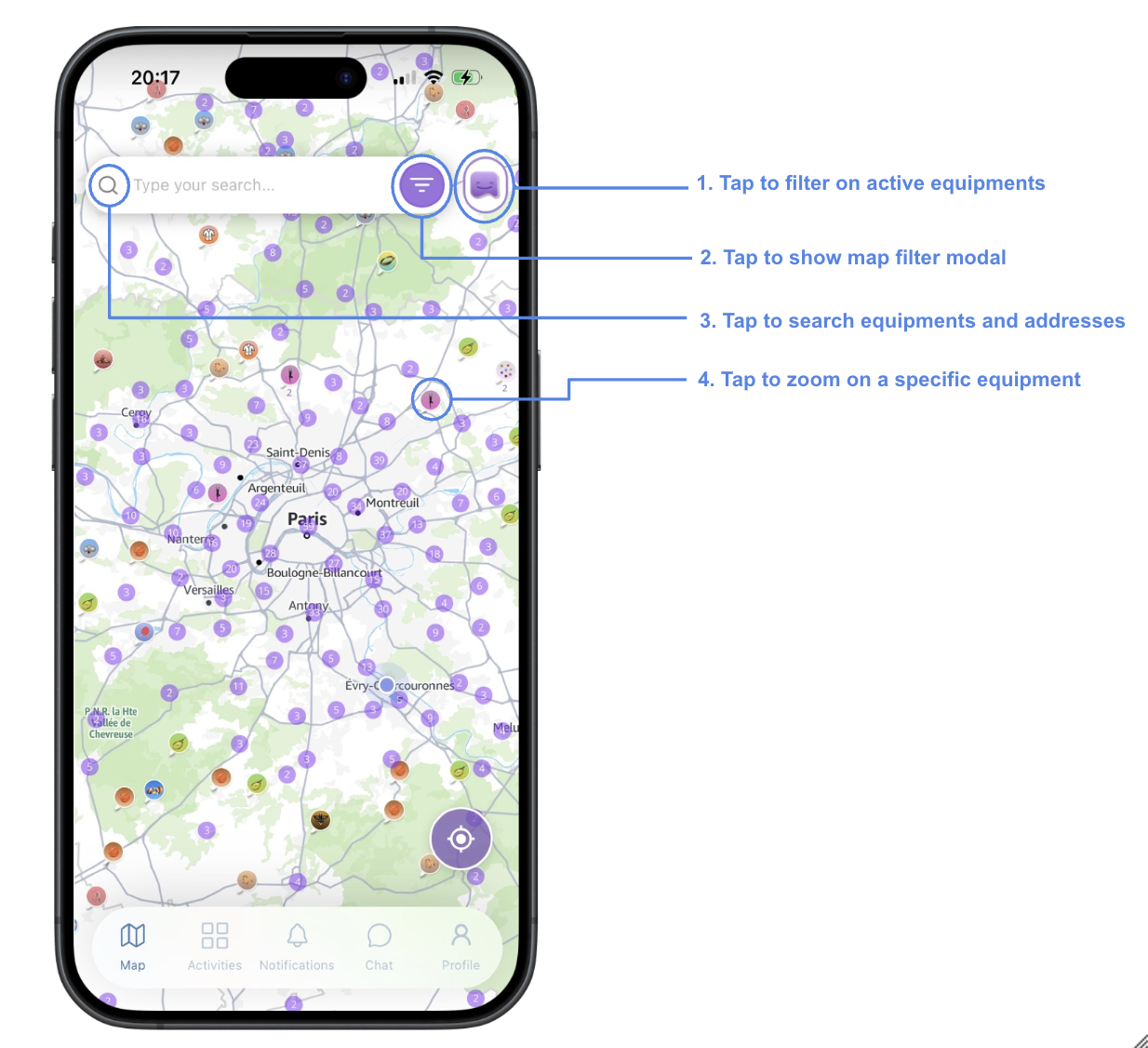
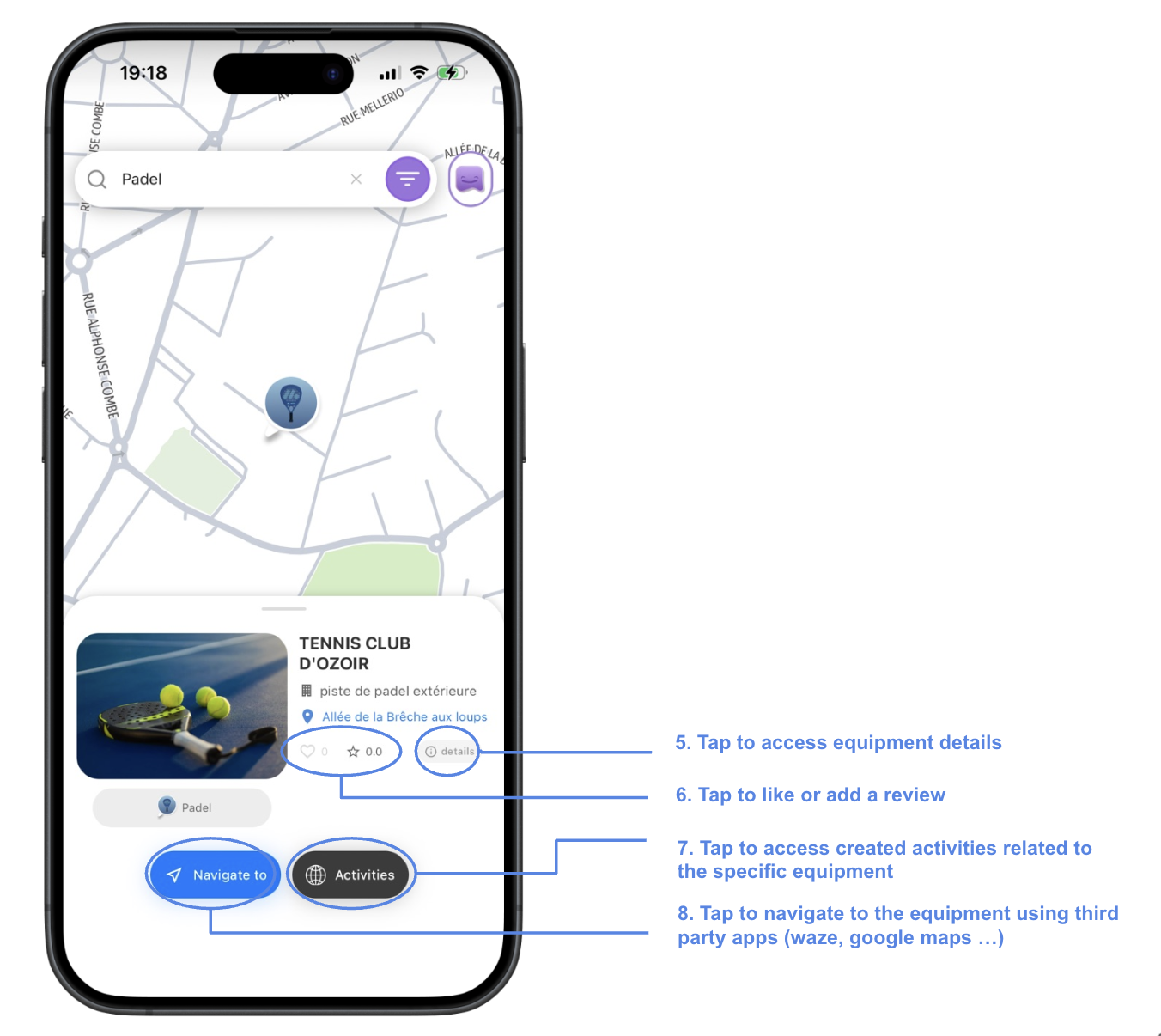
Equipment popup
When you tap an icon on the map, an equipment popup appears with venue details, address, and quick actions. From here you can navigate to the location, view activities linked to that spot and like or review the equipment. You can also signal the equipment if the information displayed is incorrect or missing.
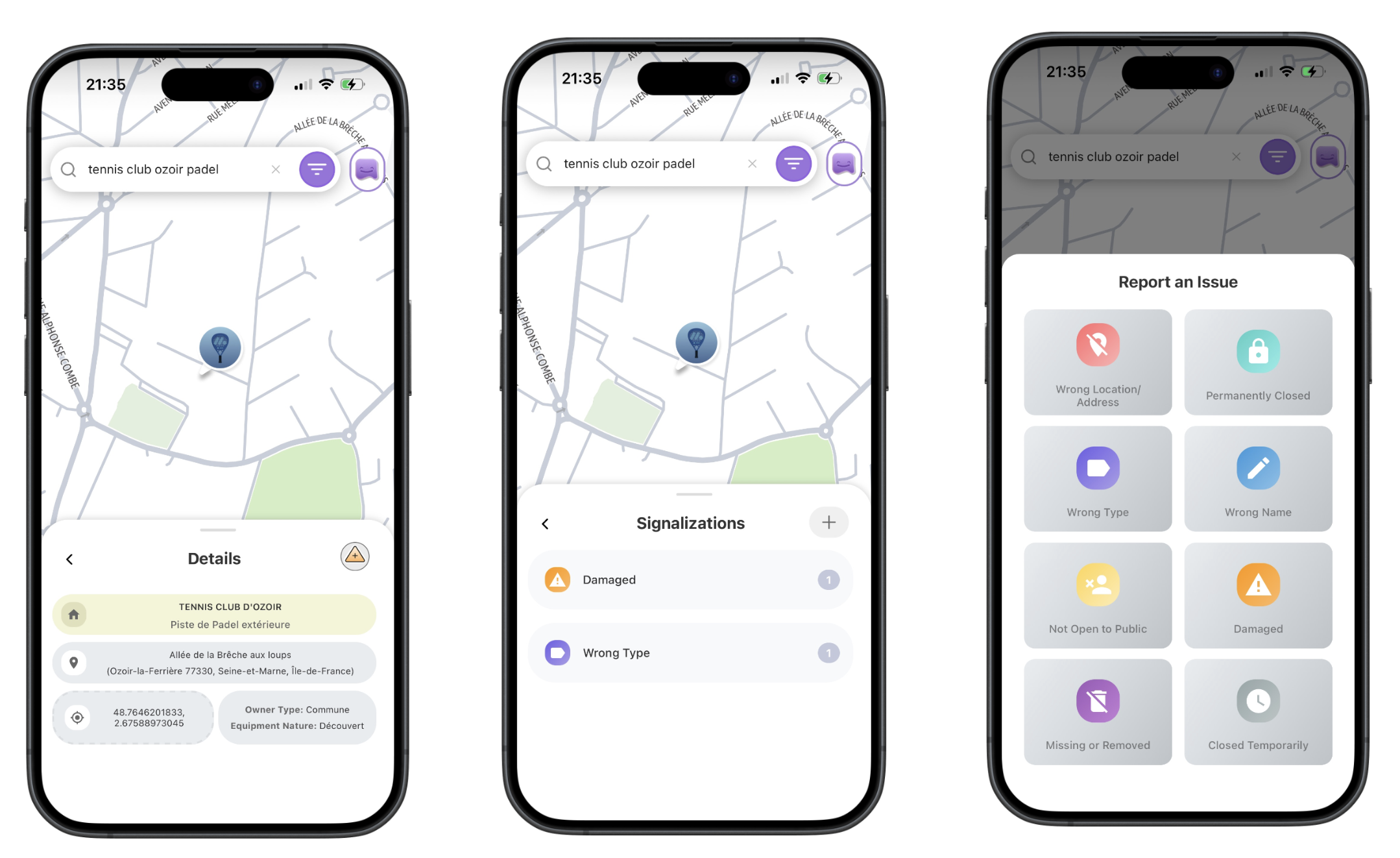
5. details
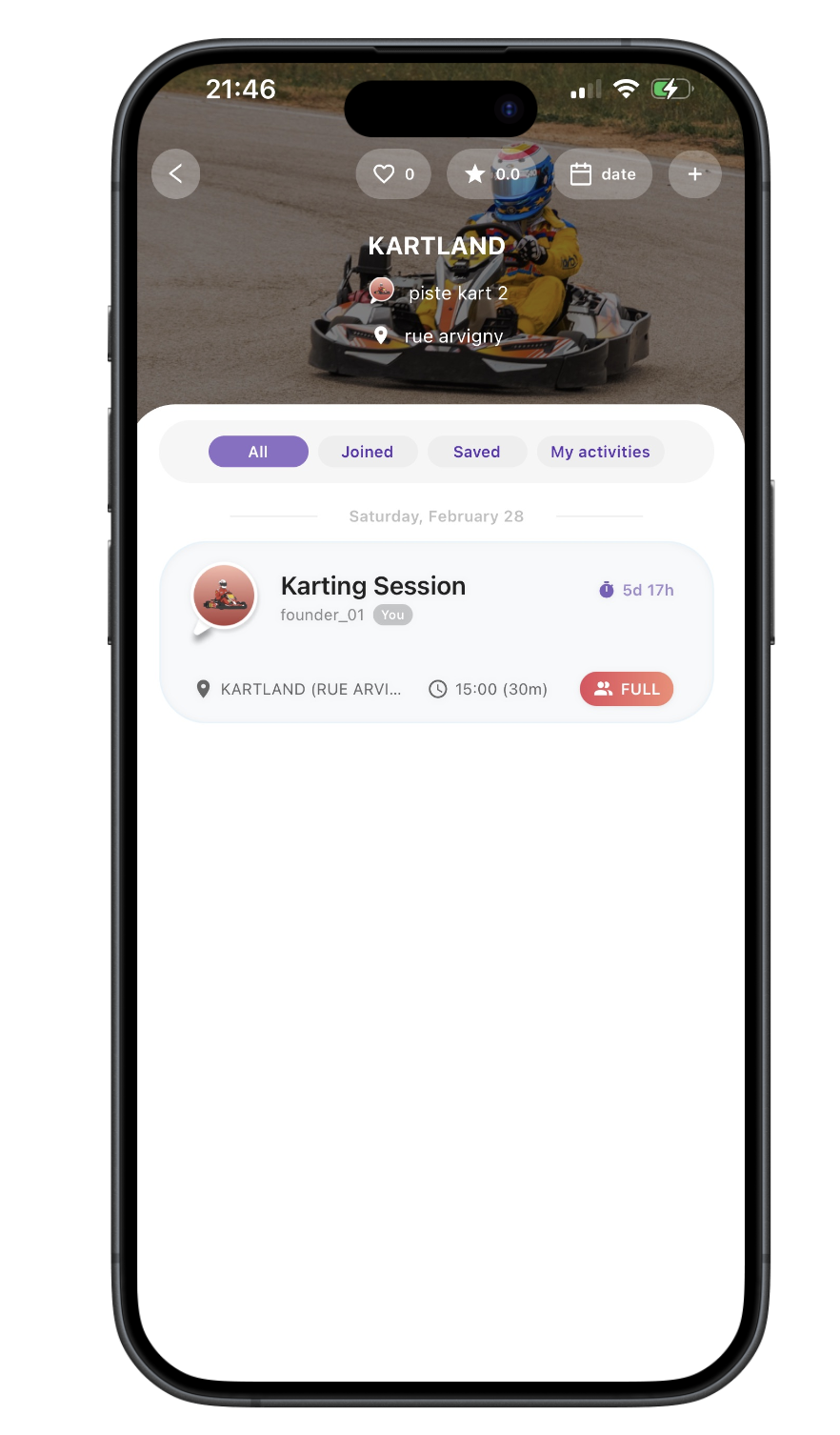
7. activities
Activities screen
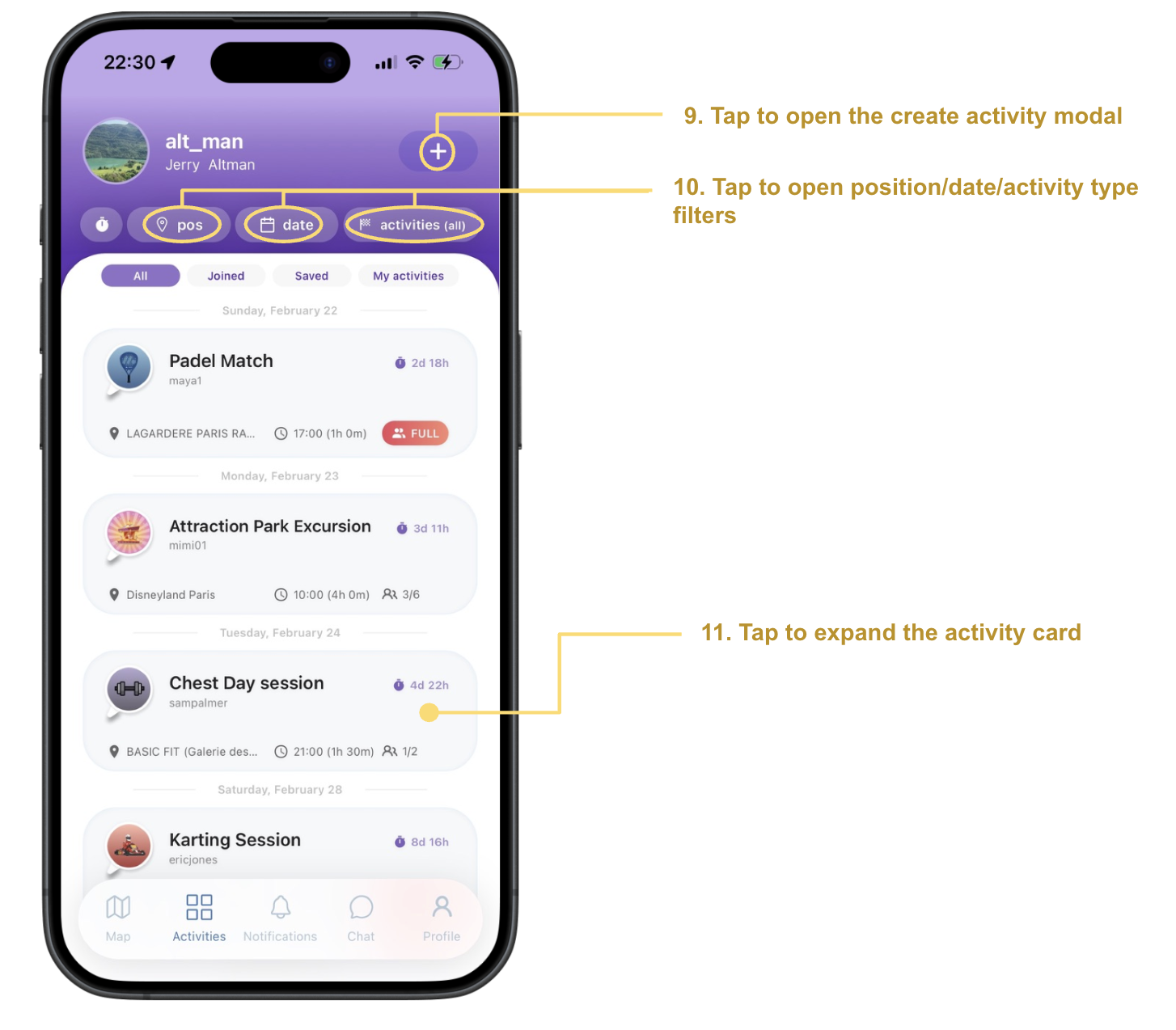
On this screen you can create, browse and discover the created activities by you or other users. You can join an activity or save it for later. Some activities are private and require you to send a join request to the creator. the clock icon next to filters is for hiding started activities (since they cant be expnanded anymore).
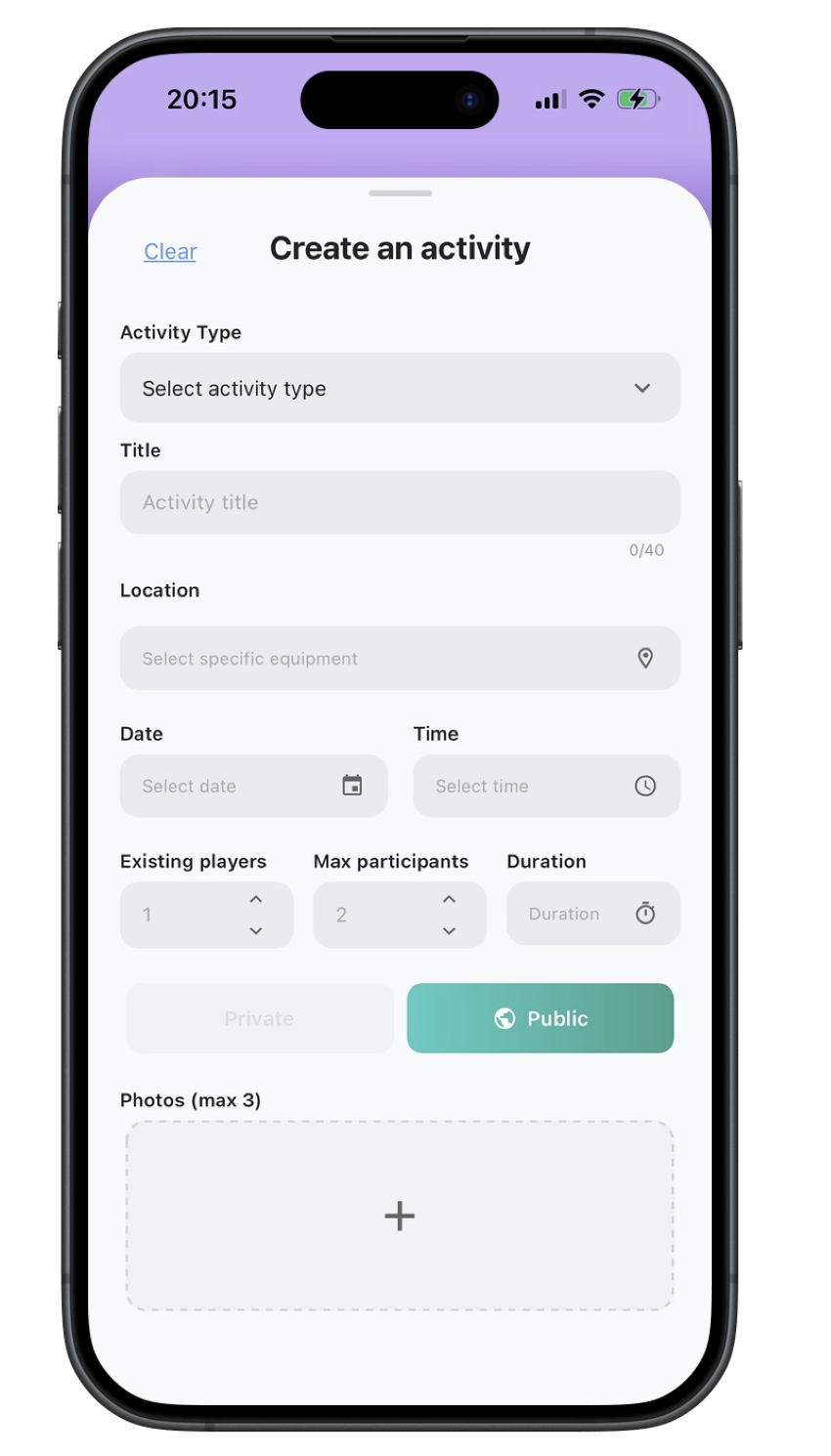
9. create
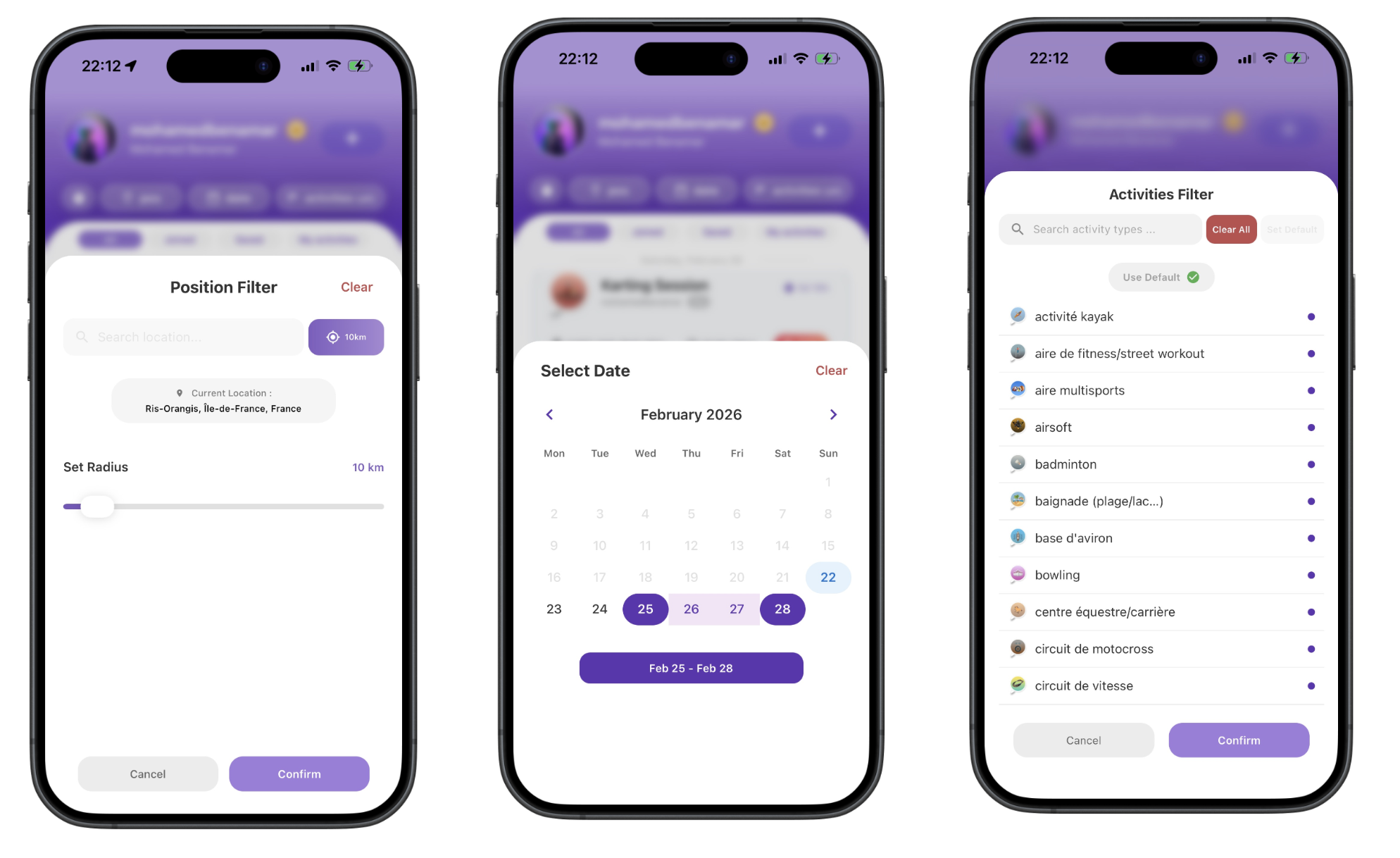
10. filters
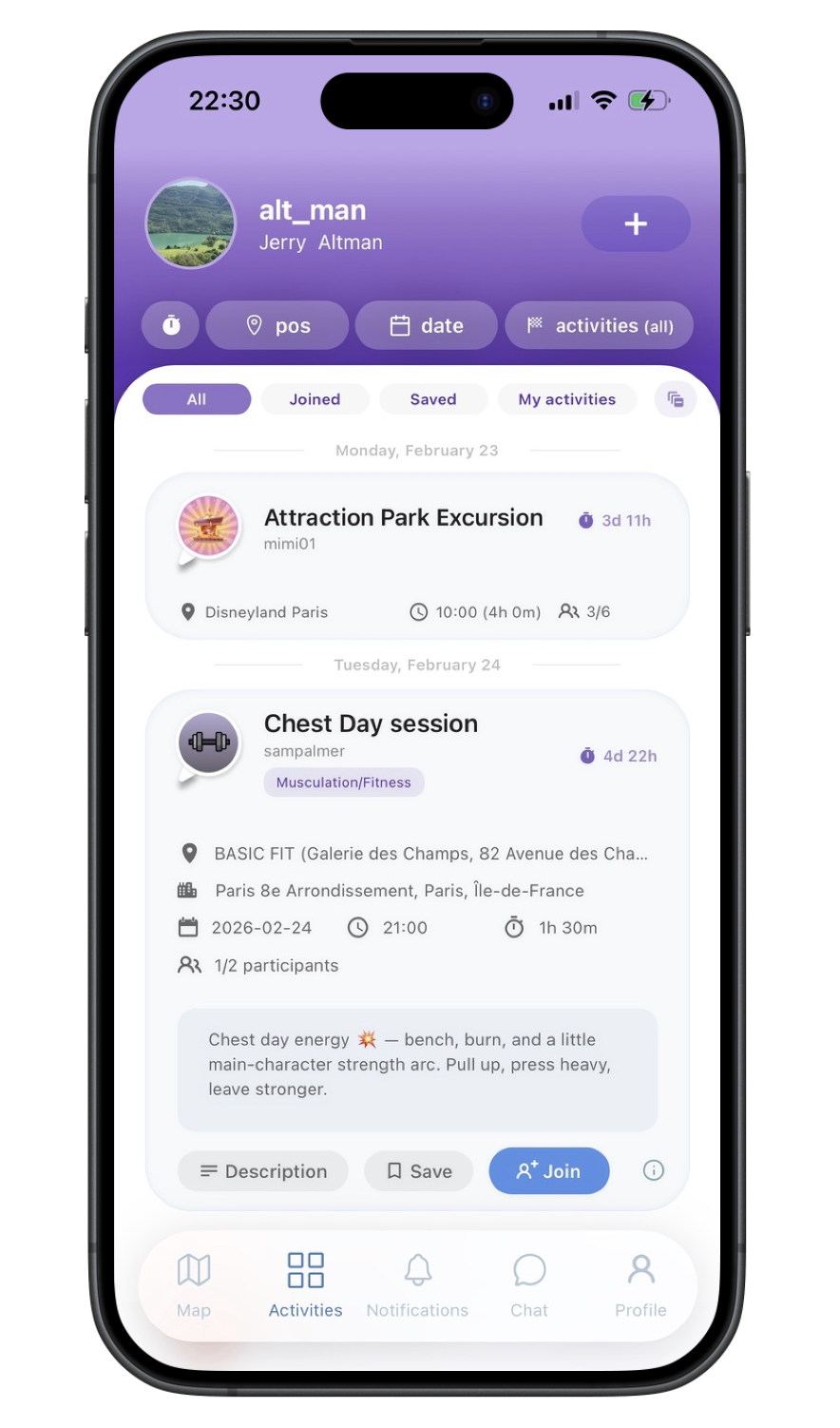
11. activity card
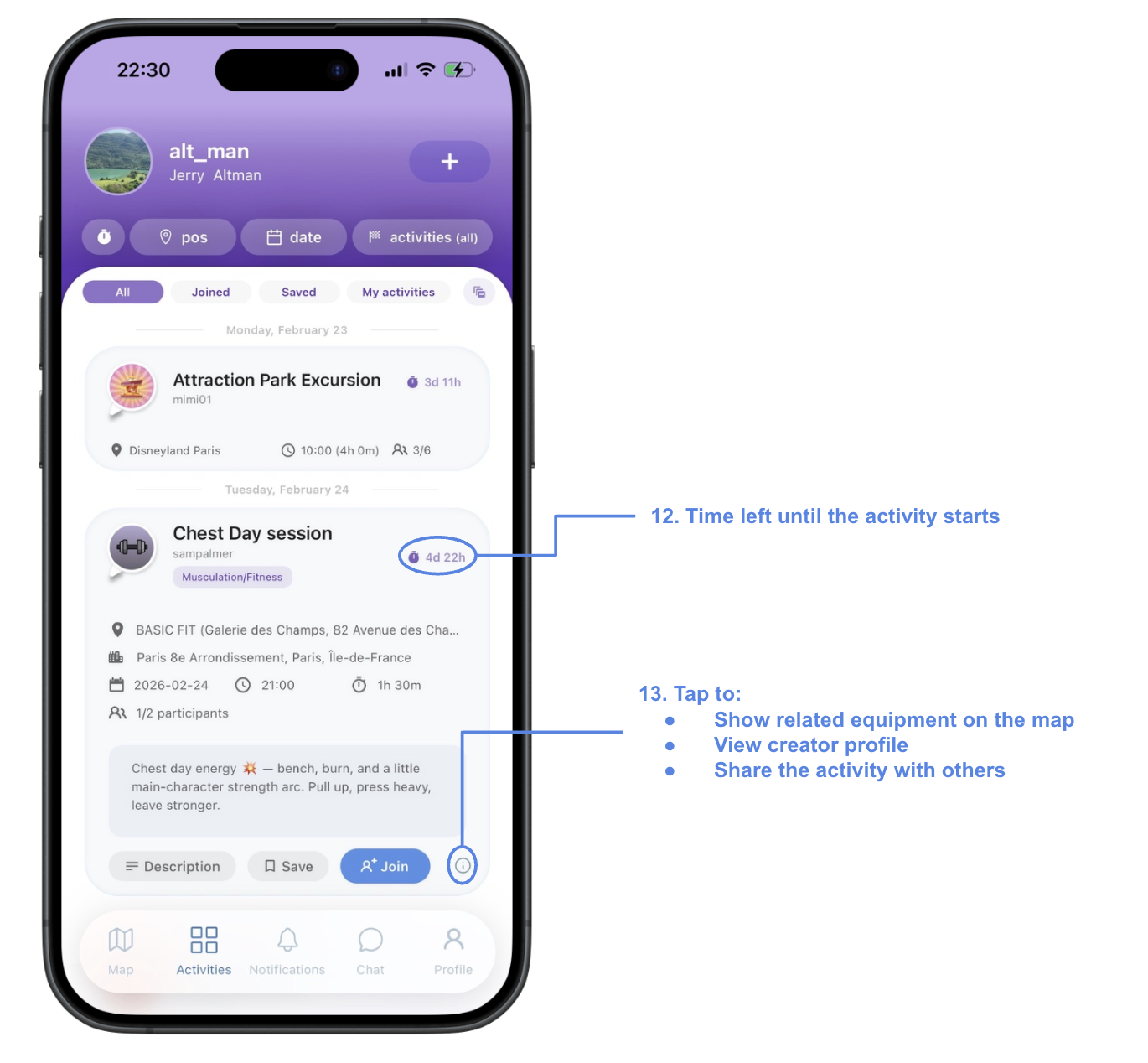
Activity card
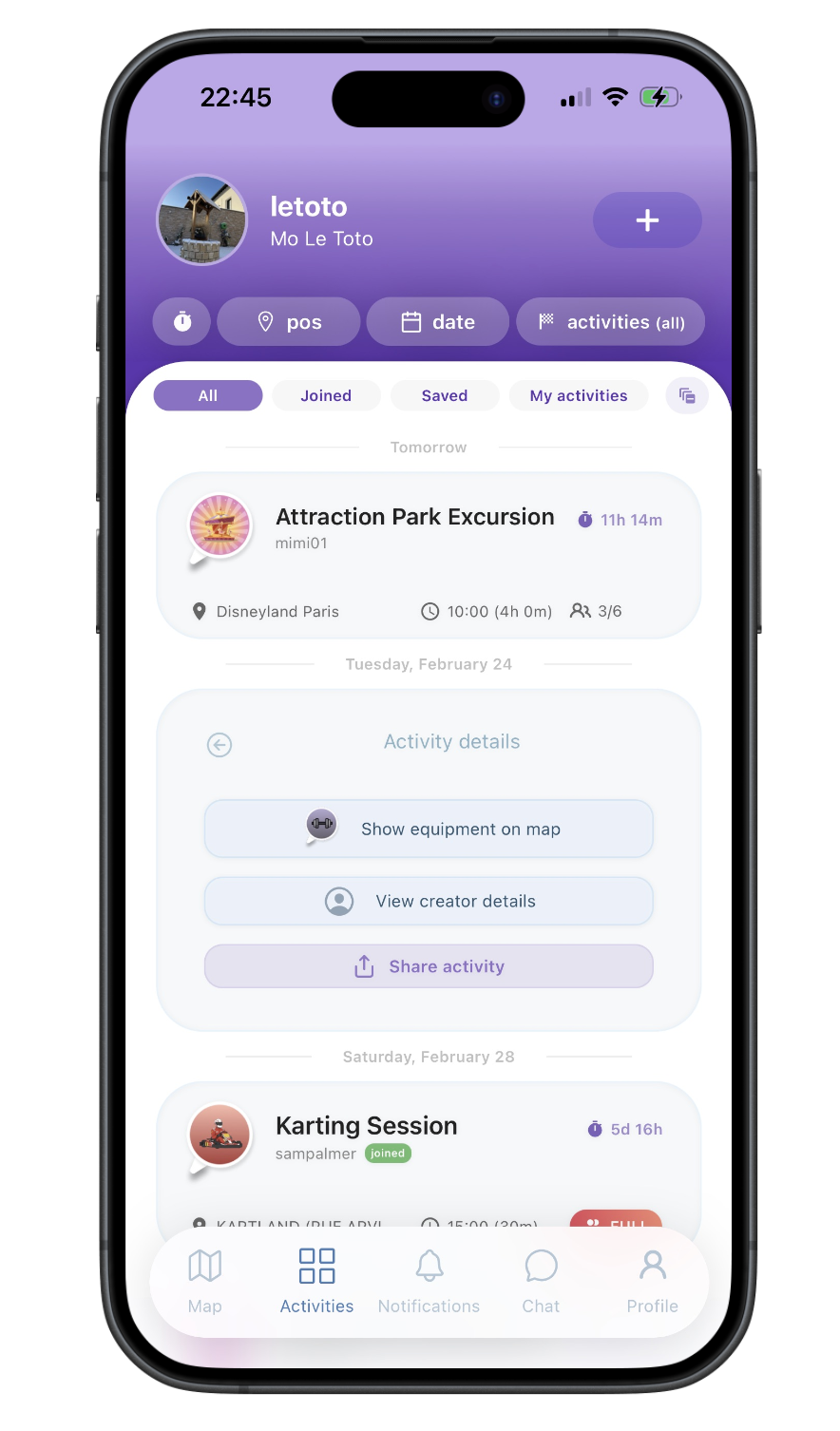
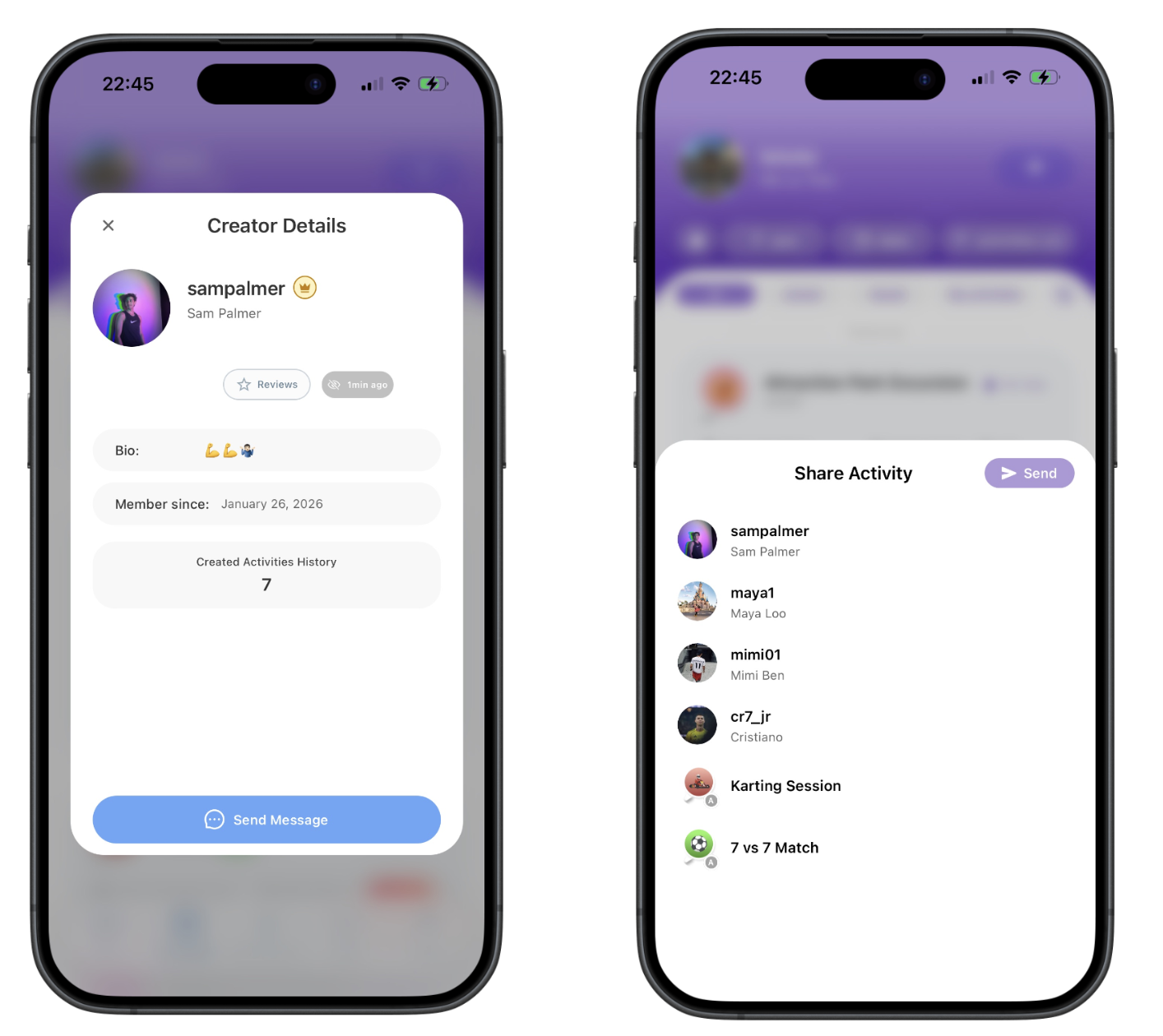
Each activity is displayed as a card with key details: activity type, date, time, location, and participants. Tap a card to view the full activity and join or save it for later. the (i) icon at the bottom right of the card opens the activity details.
13.1 activity details
13.2 creator details/share activity
Activity group
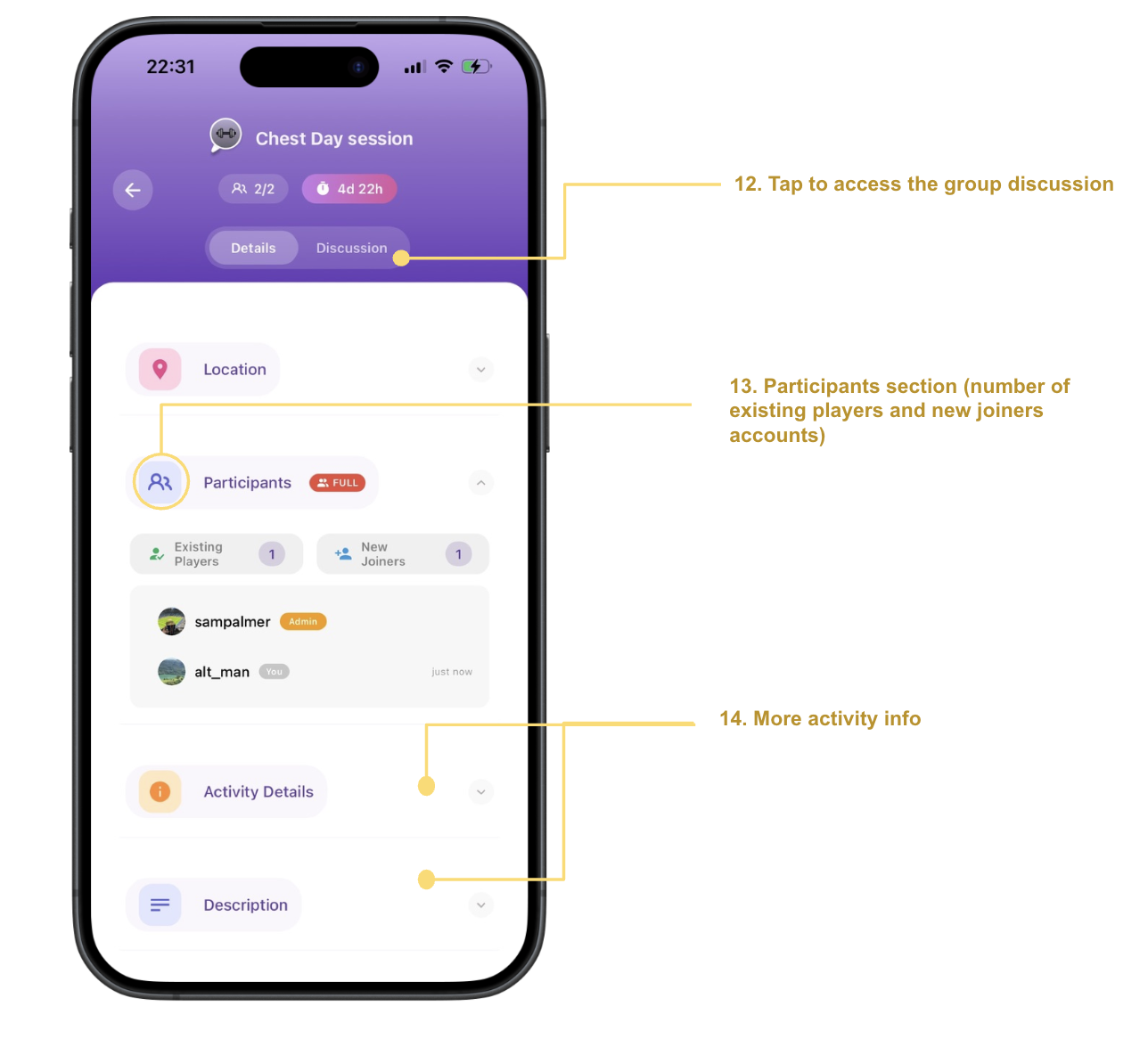
View participants of your activity, chat with the group, and manage your activity from one place. The activity card and chat are removed once it has expired.
Notifications
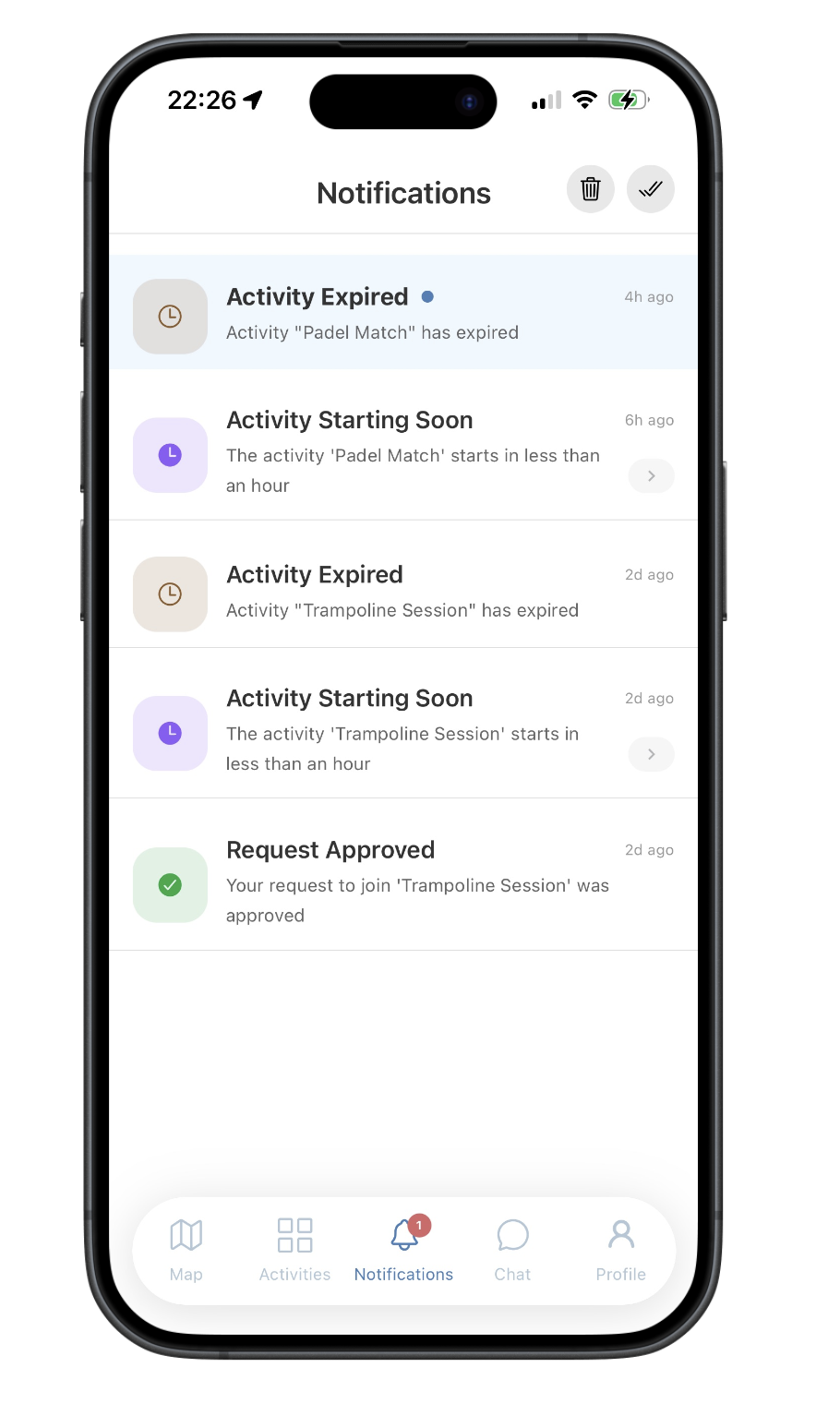
Stay updated with join requests (incoming, approved, rejected), when participants join or leave your activities, activity updates, removals, and reminders when activities are about to start or have expired. You can customize each type in your profile settings.
Chat screen
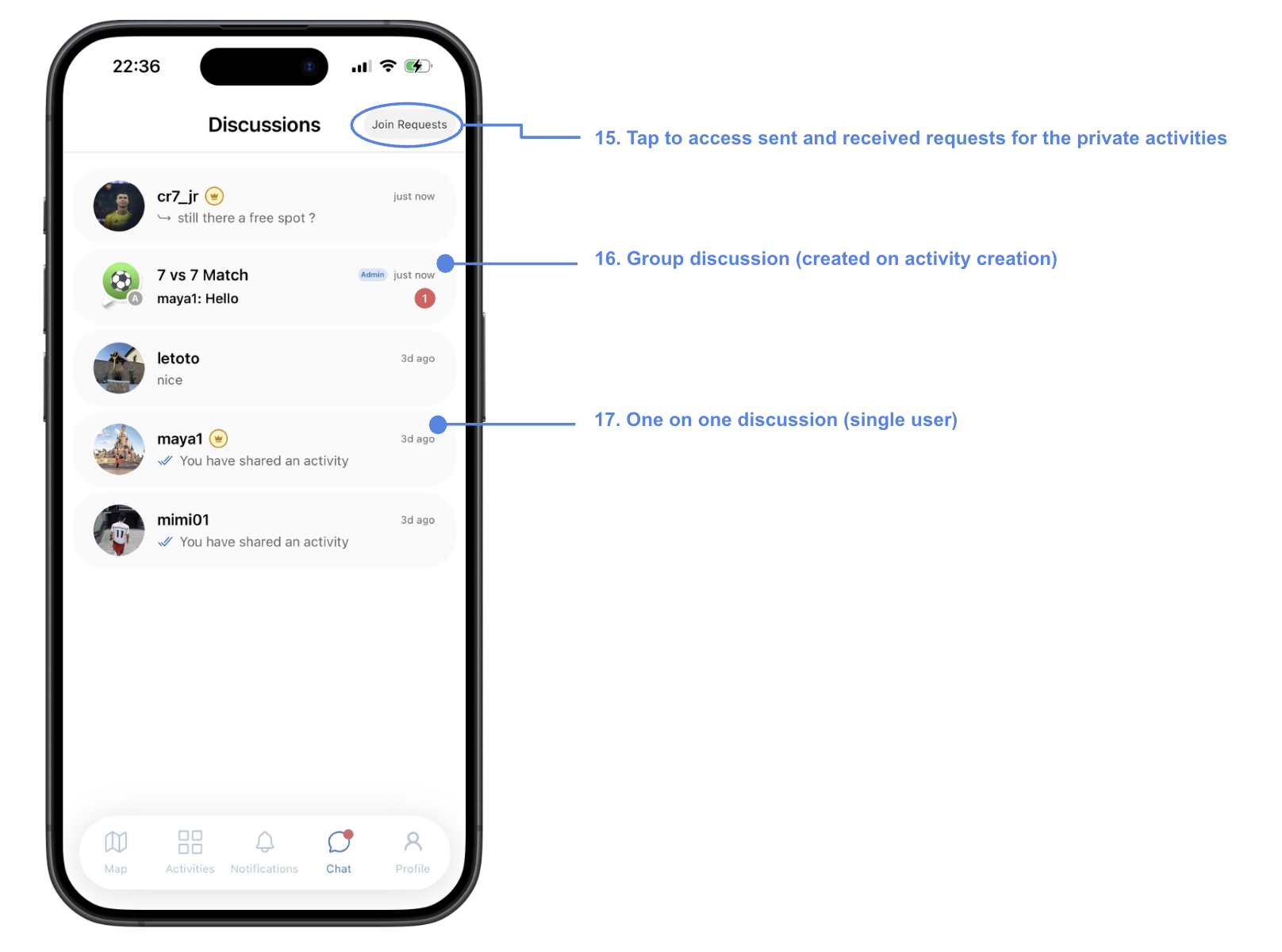
You can access your one-on-one discussion or group chats from this screen. You can also access your sent/received join requests.
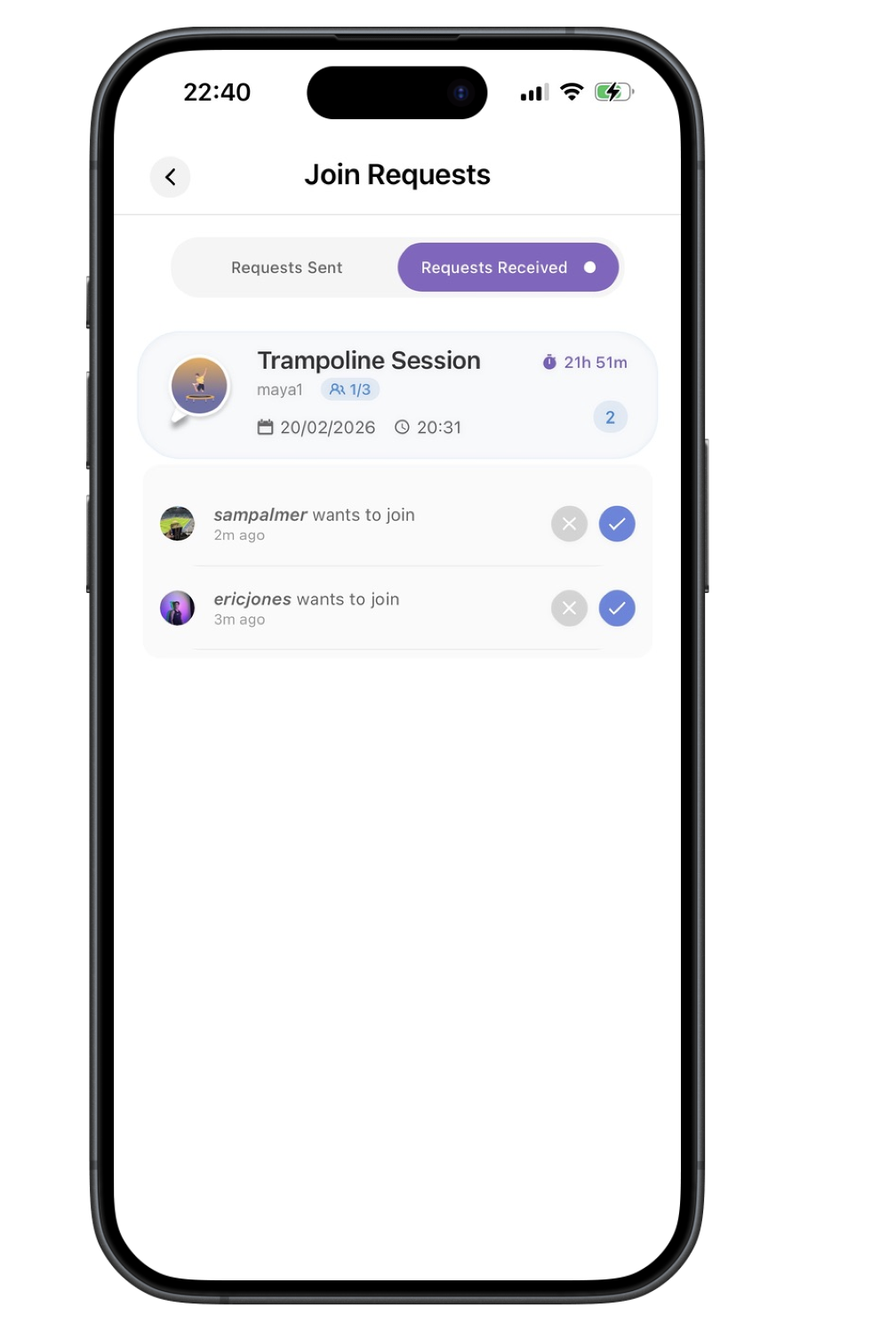
15 join requests
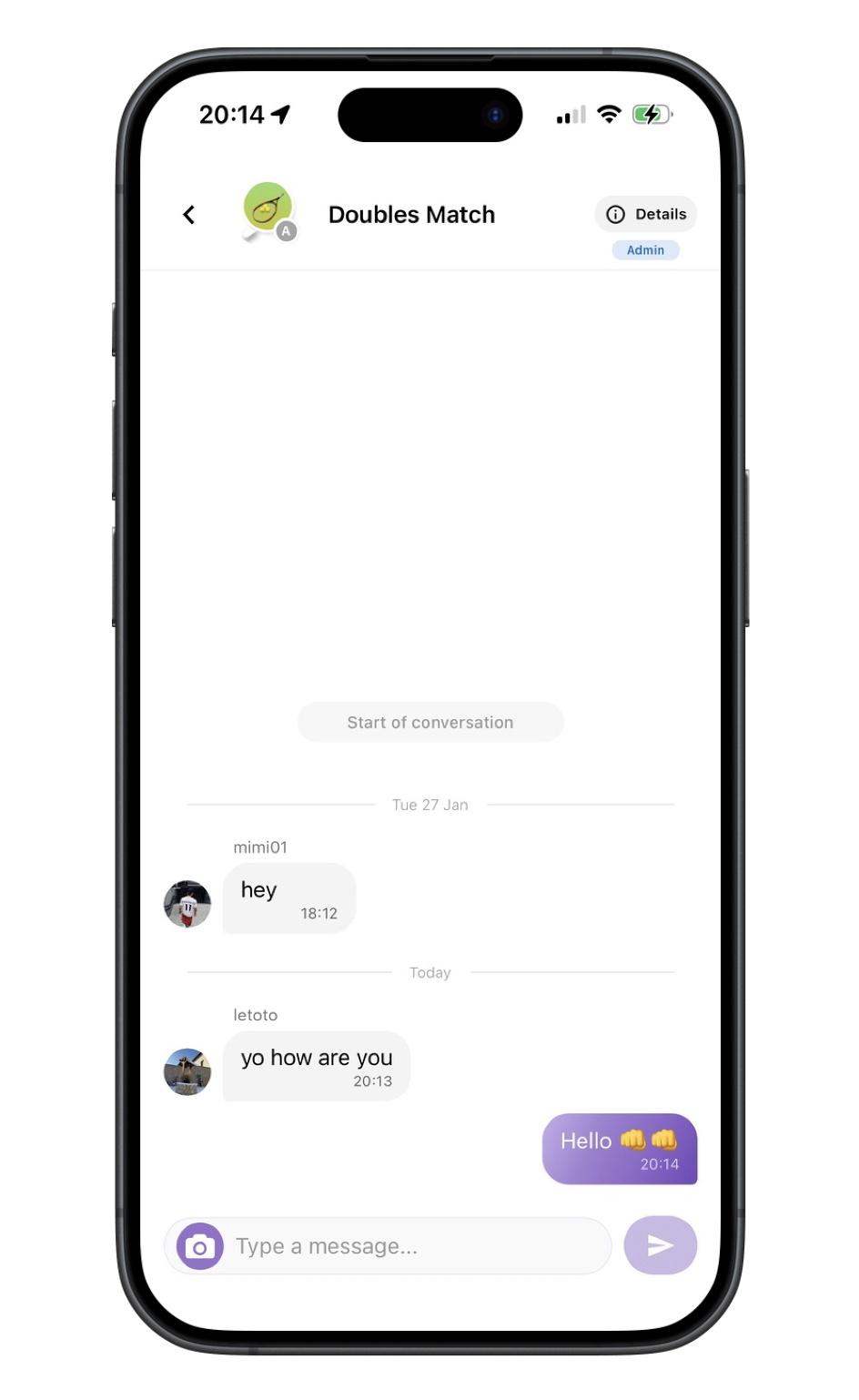
16 chat
Profile screen
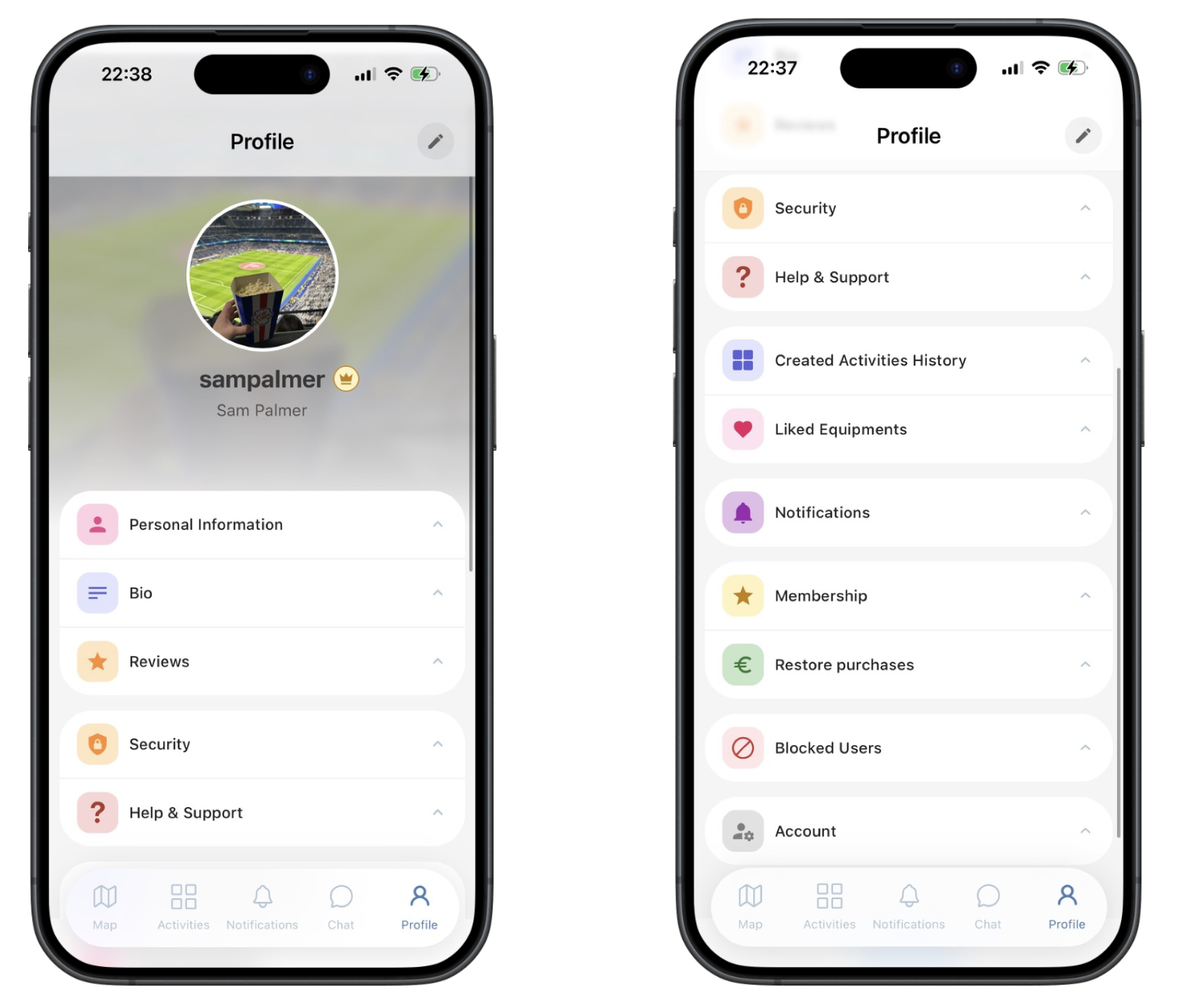
Manage your account, edit your profile, adjust notification preferences, and access your created activities history and liked equipments.